At our studio, we have a custom Unreal Engine build that we deploy to artists. We deploy our builds using a custom Inno installer.
As a result, we are required to provide technical support for all of our custom tools within our engine. This can be tricky for various reasons:
- Since we have modified the original source code to the engine, we can no longer use the symbols provided by Epic
- The artist might be using an older version of our custom engine, and the symbols on my build machine might newer
- We strip out symbols from the engine build to reduce the installer size
As a result, we are sometimes constrained because we can no longer investigate issues using the Unreal dump file created on engine crash. Alternatively, we can try reproduce the crash locally but this is sometimes challenging as the artist might be working on a big project which takes multiple hours to synchronise over P4.
The solution?
Creating your own symbols store / symbol server. It’s briefly mentioned in this handy Epic article: https://dev.epicgames.com/community/learning/tutorials/dXl5/advanced-debugging-in-unreal-engine
But how do you get started? Here’s a quick three-step guide so you don’t have to figure it out like I did.
- Make sure you have the symstore executable
- Found in
C:\Program Files (x86)\Windows Kits\10\Debuggers\x64\symstore.exe - If you don’t, try download the latest Windows Driver Kit (WDK): https://learn.microsoft.com/en-us/windows-hardware/drivers/download-the-wdk
- You can read more about symstore here: https://learn.microsoft.com/en-us/windows/win32/debug/using-symstore
- Found in
- Create a folder for your symbols store. Here’s mine:
D:\EngineSymbols - Perform the following symstore calls:
For Engine binaries:
& "C:\Program Files (x86)\Windows Kits\10\Debuggers\x64\symstore.exe" add /r /f "D:\dev\git\UnrealEngine\Engine\Binaries\Win64\*.pdb" /s "D:\EngineSymbols" /t CustomUnrealEngine-5.7
For Plugin binaries:
& "C:\Program Files (x86)\Windows Kits\10\Debuggers\x64\symstore.exe" add /r /f "D:\dev\git\UnrealEngine\Engine\Plugins\*.pdb" /s "D:\EngineSymbols" /t CustomUnrealEngine-5.7
Here’s the breakdown of what the above means:
add /r /f "D:\dev\git\UnrealEngine\Engine\Binaries\Win64\*.pdb"- Tells symstore where to look for symbols: the /r argument means it will look recursively and /f describes the root folder where symbols are kept – note this is a wildcard not regex.
/s D:\EngineSymbols- Location of the symbols store. WARNING: I wouldn’t specify the network drive directly as moving symbols to this location will hammer the network
/t CustomUnrealEngine-5.7- Think of this as the ‘tag’ or the name of your symbols. The Windows docs refer to this as ‘Product’.
Here’s a more detailed guide into these command-line options: https://learn.microsoft.com/en-us/windows/win32/debug/symstore-command-line-options
If this was a success, your EngineSymbols folder should look something like this:
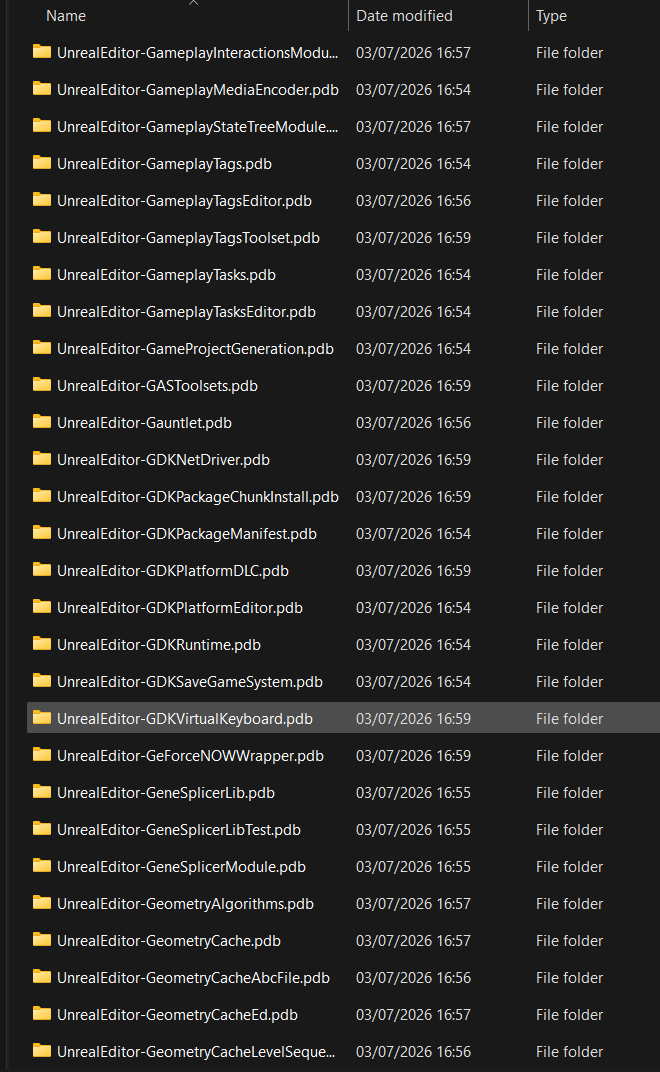
Each folder refers to an Unreal module (separate compilation unit).
Testing
To test, create a crash in Unreal. You can do this very easily by performing the following console command:
debug crash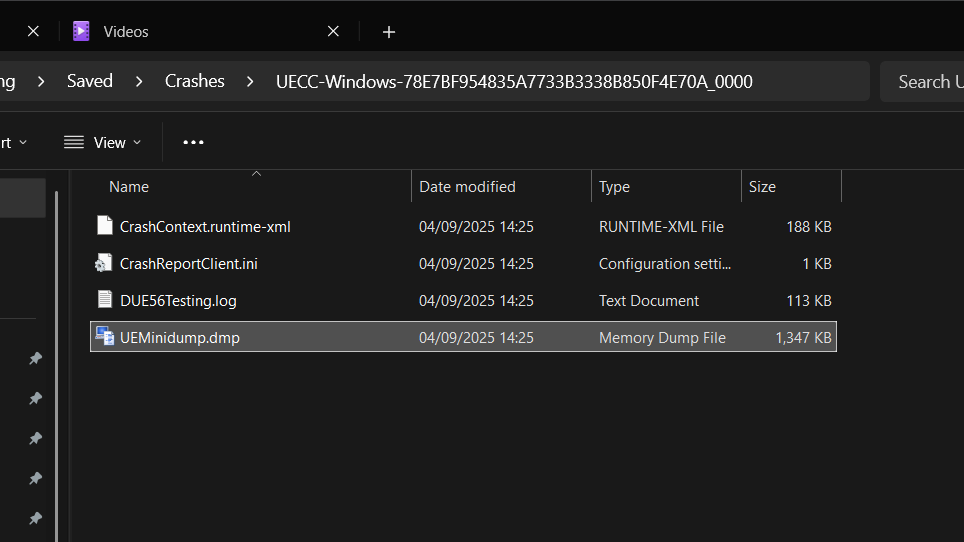
This will create a dump file within your project Saved\Crashes folder.
Double click on the dmp file to open it in Visual Studio.
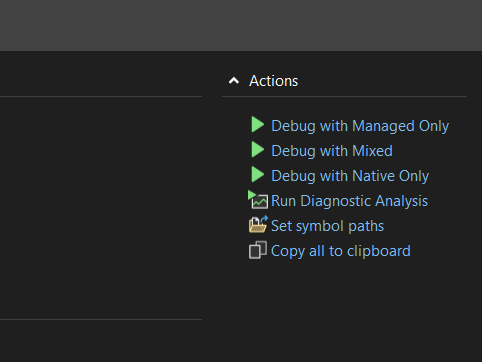
Then click on ‘Set symbol path’.
Then add your symbols path D:\EngineSymbols as shown in Epic’s article above. You might also want to look at the section titled “Symbols – Selective Loading”.
If you now try to run your dump file, the program counter should select the function ReportAssert in WindowsPlatformCrashContext.cpp
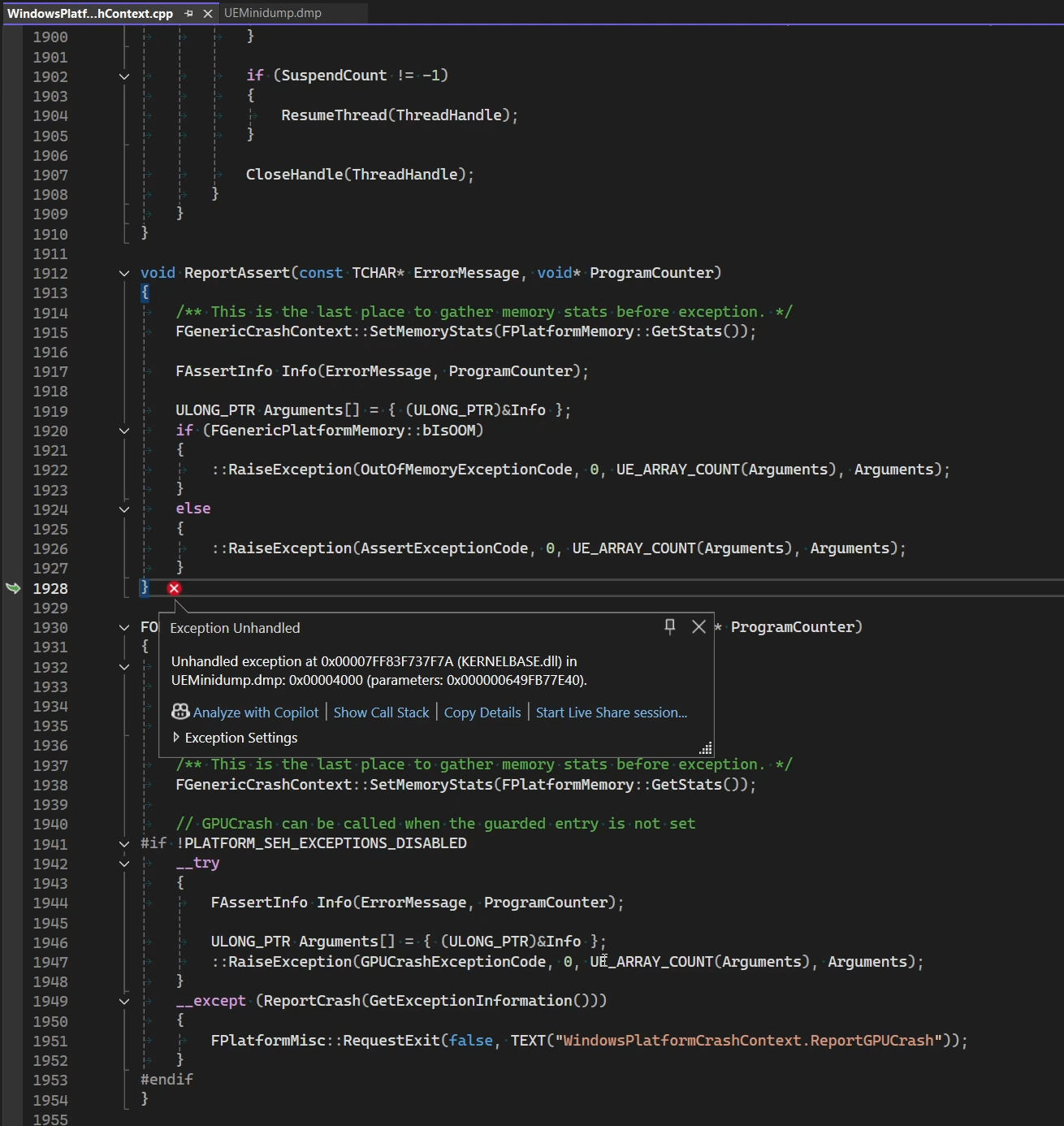
From there, you can inspect the call stack and see where your code is going wrong!
Deployment
You might choose to deploy your symbols to other developers in your team. A simple option could be to copy the symbols into a network drive location which is accessible by other members of your team.
Alternatively, you could choose to serve these symbols using SymSrv. SymSrv is something I haven’t tried out yet, but once I do I can report back on how it can be used within production environments.